Context Window Monitoring
Look after your context and let your agent one-shot that feature.
Context degradation is the silent killer of AI-assisted coding sessions. Rufus monitors your Claude context window in real-time, warns you before it fills up, and keeps your agent sharp from the first line to the last commit.
Start Monitoring Free✓ 7-day FREE trial • ✓ No credit card required • ✓ Cancel Anytime
The Basics
What Is the Context Window?
Claude processes text inside a fixed-size context window: the total tokens it can hold at once: your instructions, every message, files you attached, and Claude's own replies.
When the window fills, older content is dropped. Claude cannot see it anymore. The problem is that it happens silently. Most developers only notice once response quality starts dropping.
Context window fill
At 88% fill, your agent is already losing coherence.
The Stakes
Why It Matters
Silent Degradation
Claude does not warn you when the context fills up. Your agent quietly gets worse: shorter answers, forgotten context, broken logic. You only notice when the feature is already broken.
Lost Coherence
A full context window means Claude can no longer reference the architecture decisions you made an hour ago. It starts re-solving problems you already solved, and sometimes solving them wrong.
Wasted Tokens
Every token in a bloated context costs money. When your agent is at 90% fill, you are paying to re-process the entire conversation history on every single turn, whether it is useful or not.
The Solution
How to Monitor It
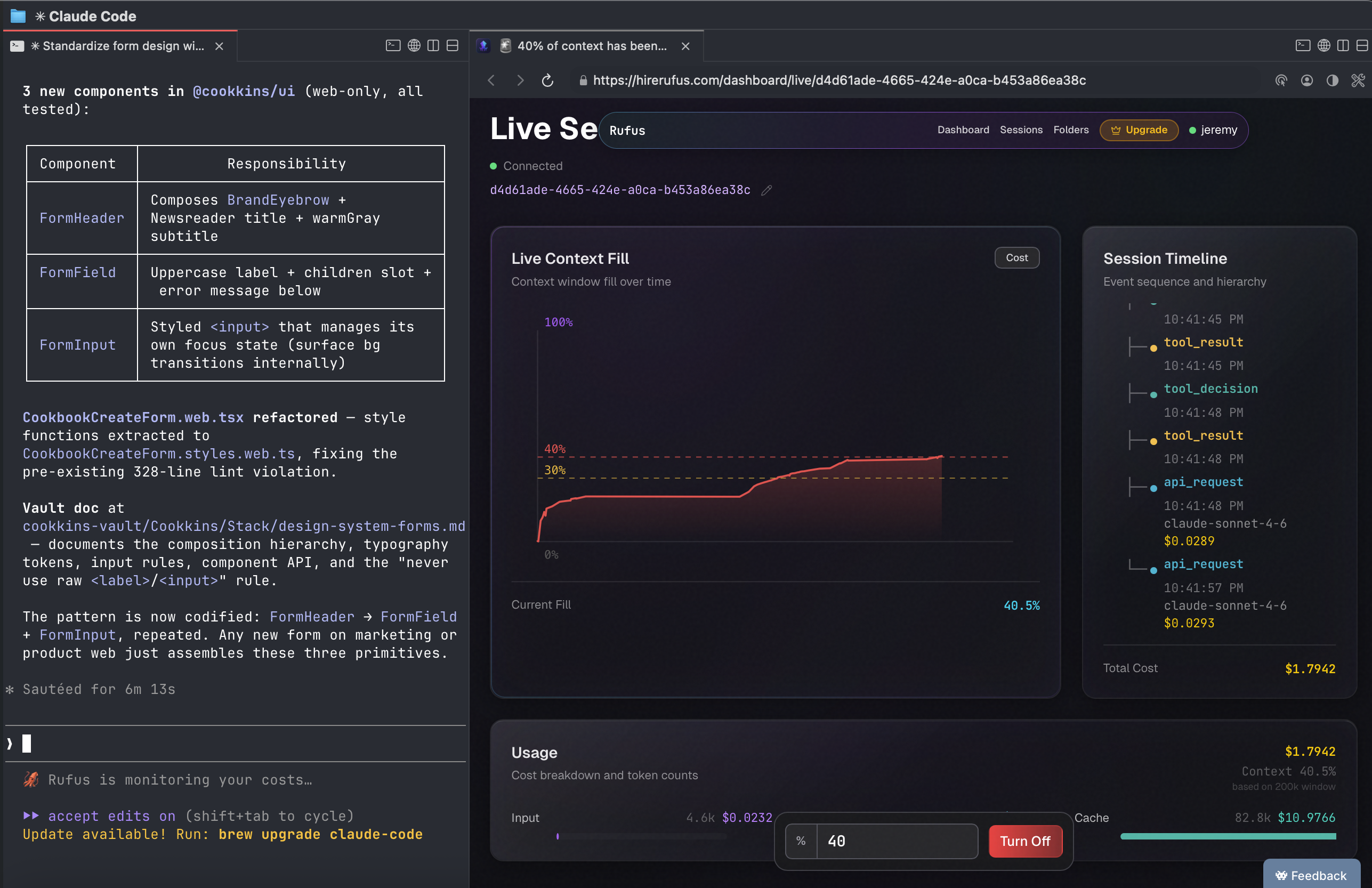
Rufus streams your context fill live and alerts you before degradation kicks in.
01
Install Rufus CLI
Run `npm install -g hirerufus && rufus init --claude` in your terminal.
02
Open a live session
Start coding with Claude Code. Rufus automatically streams context fill data to your dashboard.
03
Set your threshold alarm
Pick a fill % (e.g. 70%). When your session crosses that line, Rufus fires an in-browser alert so you can act before degradation hits.
Terminal-First
What Is the Context Statusline?
The Rufus context statusline is a persistent terminal indicator that lives alongside your Claude Code session. It displays your live context fill percentage and running session cost, right in your terminal.
Configure it once with rufus init --claude and it stays on, automatically updating as your session progresses.
Status Line
See your live context fill and costs at a glance.
Context FAQ
- What is the Claude context window and why does it matter?
- The context window is the maximum amount of text (your messages, Claude's replies, and any attached files) that Claude can process in a single session. Once the window fills up, Claude can no longer reference earlier parts of the conversation, which causes it to lose coherence, repeat itself, or produce lower-quality responses. Monitoring it lets you act before degradation happens.
- How do I monitor my context window in Claude Code?
- Install the Rufus CLI, run `rufus init --claude`, and open a live session in the Rufus dashboard. You will see a real-time context fill chart streamed via WebSocket. Set a % threshold and Rufus will alert you in-browser (the tab title changes) before your agent enters the degraded zone.
- What is a context statusline in Claude Code?
- The Rufus statusline is a terminal indicator that appears alongside your Claude Code session. It shows your live context fill percentage and running cost at a glance, without opening a browser tab. Configure it once with `rufus init --claude` and it stays on, session after session.
Stop Flying Blind. Start Monitoring.
Your context window is your most important resource. You should know exactly how full it is.
Start Monitoring Free✓ 7-day FREE trial • ✓ No credit card required • ✓ Works with Claude Code • ✓ Cancel anytime